
Use the myEvolv Event Copy Forward functionality
myEvolv supports the functionality to copy forward event data.
When Copy New is used, the signatures do not copy over from the previous form and the signature links are not available for updating until the event is saved. After the event is saved and then re-opened, the signature fields are available for use.
Event Copy Setups
To begin, create a copy template to define the source event where data is located and the target event where the data will copy. Then identify the forms for the events and choose the source fields you want to map to target fields.
- Navigate to: Agency Setup > Other Setups > Event Copy Template >Template.
- Search for an existing template or search and select New to create a new one.
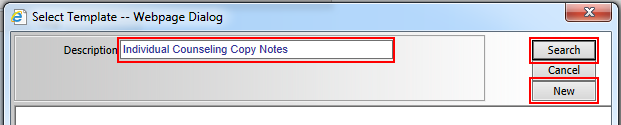
- Select Source Event.
This is the event where data will be copied from. - If applicable, select Client Source Event?.
- Select Target Event.
This is the event where data will be copied to.
Note the following:
- The events can be different. Keep this in mind in case you want to perform cross-events copy.
- There can be only one unique Target Event per all the copying schemes, as data is NOT copied from multiple Source Events.

Once events are selected, select the forms that are utilized by the events.
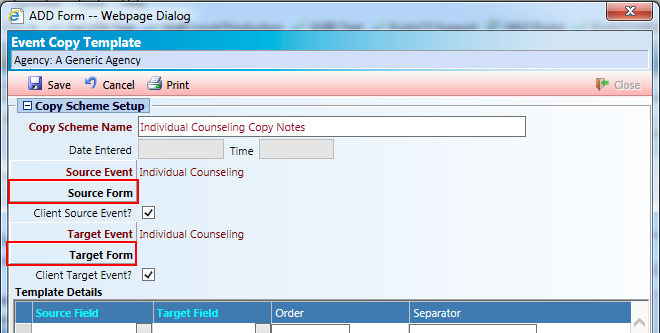

Most of the time there will be one form per event used for NEW and EDIT. However, in instances where different forms are used for NEW and EDIT, both will be listed.

Enter Template Details
- Field types available for use in the event copy functionality are limited to REMARKS and M (Memo).
- Select a Source field and a Target field.
- In the pick list, fields from the Main form are noted under ‘Form’ as ‘Main’.
- When Fields belong to the sub-form, the sub-form name will appear under ‘Form’.


When a field will be a one-to-one copy, there is no need to enter Order (Separator is optional).

- Combine Fields from to populate in one target field.
- When a different Source Field will be picked for the same Target Field, this is considered ‘field combining’.
- When fields will be combined, Order is required (Separator is optional)
- The setup in the next section tells the system that on Copy, take ‘Remarks with HTML’ and ‘Reason for Visit Narrative’ and concatenate with a separator ‘ ||’

Copying Data
Upon completion of the Copy Event template, it can then be utilized on any event form that is part of the copying scheme.
- In the example below, we will access an Individual Counseling event through the Client > Case Management > Service Management > Service Entry screen.
- Upon completing and saving a Source Event, when a Target Event is selected, the ‘Copy Data’ button will be available.
- Note the following:
- When working with a new event and selecting ‘Copy Data’, the system will always pull data from the latest Source event.
- If you are editing the latest Target event, in that situation the event prior to that will be selected.
- Note the following:
- When an event is defined as a Target event in a copy template, the linked form will have a Copy Data button. By clicking it, data from the source event will be copied forward onto the event.
- Clicking on the button replaces target with source for regular forms, and for sub-forms, new row will be created.

Pop-up windows will appear updating you on the status of the copy and close when the process is done.

Create Copy Template to pull data from different events
Since you can copy data from fields on other events, users are able to bring data into a form from other events. The text that populates in is modifiable allowing users to view and edit text.
Example:
- The template below will allow for data entered in the Outcome of Contact and Follow up Required and data in the Purpose and Description of Contact fields to flow into the ‘Remarks’ field on the Monthly Summary form.

- Data entered in Case note - Source Event

- Select ‘copy data’ in the target event.

Important!! A target event can only be used in one Template. That means you cannot create multiple templates to bring data from other events into the same form.
Example:
- In the template above, we used fields from the Case note as the Source and selected fields from the Monthly Summary as the Target.
- If you attempt to create/save a second copy template to copy data from a difference source into the Monthly Summary (Target), the system will generate an error.

Additional Notes
Progress Notes Memo fields gets copied with formatting.

Example of a field copied where a Target Field appears on a sub-form.

Note the following:
- If an HTML formatted field gets copied onto a Remarks field, then formatting tags will be displayed and they will need to be stripped manually.
- If a Source Field resides on a sub-form, then based on the ordering of the rows, the top most row will be selected. So it is important that you have specified the correct order in Form Designer.
- In the event of an invalid event setup where 'Has Multiple Notes' and 'Has Single Note' are both selected, 'Has Multiple Notes' will be the one used in the copy scheme.

Test your setups
- Create multiple copy scheme templates.
- Try to use the same Target Event more than once; you should be stopped.
- Try saving for a field combined with Order missing; you should be stopped.
- Test the copy in EDIT mode and NEW mode.
- Copy across different events.