
Set up Evaluation and Management forms, events, and rates
This article details how to setup forms, events, and rate information for Evaluation and Management services in myEvolv.
Whereas most billing code information is contained within the back end of the myEvolv system, due to the nuances of the E/M codes, the information is entered at the time of service delivery.
This article will first discuss how to setup the Forms and Events to capture the necessary information at the time of service, then will discuss the specifics of rate setup for E/M rates.
Setup locations in myEvolv:
Setup > Event Setup > People > Event Setup
Setup > User Tools > Interface Design > Form Designer
Finance Setup > Payer/Contract Setup > Payer/Contract Setup > Billing Rates (AR)
E/M Event Setup
If the end goal is to capture E/M information, there are two options available.
Option 1: Building a new event. In this case, and the version of myEvolv is 8.5.13 or later, it is possible to import forms which already contain the relevant E/M forms. If this is the option chosen, and the new event is replacing an existing event, note that a decision must be made about the cut-off date from the prior event. Then, a choice can be made whether to make the old event inactive if no program is using the event moving forward, or to make the connection between the event and the program inactive. (Note: Do not delete the event, or the connection between the event and the program, as historical documentation will be lost.)
Option 2: Modifying an existing event. In this case, the E/M fields must be added to the existing form.
- ► Option 1: New Event Setup and Use Existing Form
-
If the choice is made to set up a new event, it is possible to utilize forms which already contain the E/M fields. These forms have been designed specific to APA recommendations for entering in New Patient and Established Patient health/medical information. The criteria of entry for New vs Established Patients are different, therefore the forms were built differently. These forms could be used as-is, or copied and modified to meet the specific needs.
Setup > User Tools > Interface Design > Form Designer
The forms are located in the Form Family Tests and Assessments (People) and are named:
- EM Psychiatric Initial Visit Note
- EM Psychiatric Management Note
These forms can be attached to a newly built event by going to Setup > Event Setup > People > Events Setup.
- Ensure that access is provided.
- Ensure the event is connected to the appropriate programs.
- Ensure the appropriate billing rules are connected.
- ► Option 2: Modifying Forms to Capture E/M Coding
-
Use the information below if the choice was made to keep using an existing event and just add the E/M fields.
Setup > User Tools > Interface Design > Form Designer
The following EventLog Fields allow for entering the E/M Codes on the form. If the agency has existing forms which must be modified in order to accommodate the E/M requirements, these fields can be added to existing forms. It is recommended to place these fields in their own group on the form.
Note: ensure the existing fields are used, rather than creating new database fields.

- Is E/M Service

- Patient Status – Ensure the Look-up Table E/M Patient Status is identified, or no options will exist for the user.

- E/M History - For this field and all subsequent fields, you can identify a disable rule. This will render the field inactive (grayed out) until the first field is checked to identify that the service is, in fact, an E/M service.
!isChecked('is_em_service')


- E/M Examination

- E/M Med Dec Making (Medical Decision Making)

- E/M CPT Code - Ensure that the Depends On and the Depends On (other) fields are entered appropriately.
Note: Fields will not be available as an option in the Depends On section until that field is added to the form, and the form is saved.

- Paste the following statement in the Depends On (other) field.
getElementFromXML(formXML, 'em_history_id')~getElementFromXML(formXML, 'em_examination_id')~getElementFromXML(formXML, 'em_mdm_id')
- There are two options available for the Look-up Table Used field:


- The first option, E/M CPT Code, will filter the available CPT codes based upon the choices made in the other fields during documentation.
- The second option, E/M CPT Codes – All will NOT do this filtering, and will always present all possible CPT codes, regardless of the options chosen in the other fields.
- Paste the following statement in the Depends On (other) field.
- Is E/M Service
- ► Add On Services - Event Setup
-
Add on services are set up as events within the Activities – Other Event Category.
- First, to identify the form, navigate to: Setup > User Tools > Interface Design > Form Designer. Select the Form Family Other Activities – B2E. Review the forms available.
- If one of these forms meets the needs, then no further action is required in this area of the system.
- If the available forms do not fully meet the needs, then they can be copied and the new form modified to meet the needs.
Note: it is possible to identify that the Add-On Service has Interactive Complexity, separate from the primary service’s Interactive Complexity designation.
- Next, the Add-On Service Event needs to be built.
Build Add-On Service Event
- Go to: Setup > Event Setup > People > Event Setup.
- Select the Event Category Activities – Other.
- The event should be configured to not allow individual entry. This will remove this event from the New Service menu, meaning it will only be available from within the main service.

- Provide access to worker roles and connect to programs as usual.
- The event should be connected to two system event groups: Client Services and E/M Add on Therapy. Ensure that the event groups identified are System Event Groups, not user defined. This is important because the E/M event group above is linked to the form used for the E/M entry. This event group filters the list of events that are allowed to be selected on the E/M service entry.

Add Event-Based Subform
- Navigate to: Setup > User Tools > Interface Design > Form Designer, and select the form family which contains the form for the primary service event.
- Add an event-based subform, and select the following:
- Event Category = Activities – Other
- Sub Form Family = Other Activities – B2E
- Sub Form = Other Activities – B2E
- While it is not required, it is highly recommended that the Event Group E/M Add On Therapy is identified to ensure that the user is only provided with options that are relevant to Add-On Services.
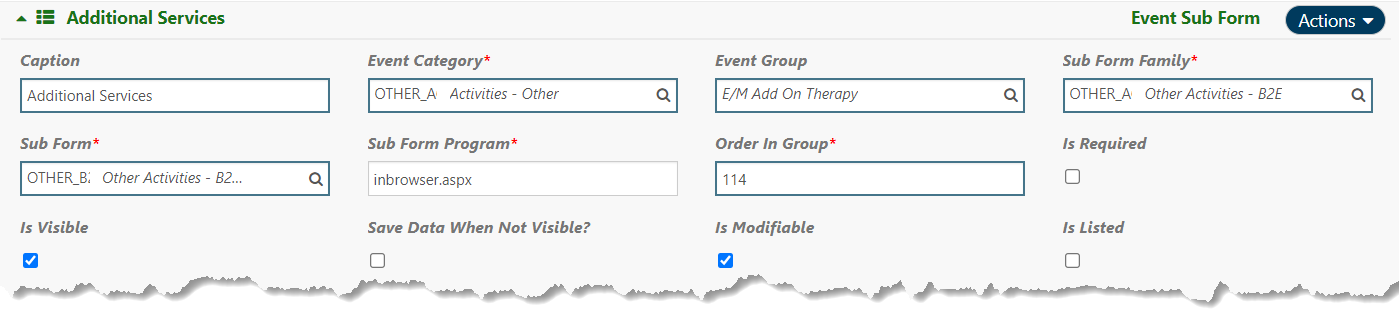
During documentation, after saving, the Add On service is saved as a separate event and can be opened and modified separately from the primary service.
- First, to identify the form, navigate to: Setup > User Tools > Interface Design > Form Designer. Select the Form Family Other Activities – B2E. Review the forms available.
E/M Rate Setup
These steps are segregated and summarized as they are more complex than the standard finance setup, generally meant to fulfill the need to bill x rate for y service.
As discussed in the previous section, the doctor/nurse is presented with 4 options that lead to the correct billing code. These selections made will tie back to a special rate setup specifically designed for E/M services.
The E/M services are entered on the contract and use the same rate setup regardless of whether the patient is New vs. Established.
- ► E/M Services Rate Setup
-
- Navigate to Finance Setup > Payer/Contract/Rates Setup > Payer/Contract/Rates Setup > Billing Rates (A/R).
- Make the appropriate Payer selection and use filters as needed.
- When the rate is listed, select Actions > Edit Rate Header.

- Ensure E/M rate is checked. This validates against whether the provider selects the E/M information on the service form. If they do NOT, then the service will NOT bill.
- The same Service Line Consolidation Category for the primary E/M service should be used for all E/M add on services. This is what controls how the system creates the claim structure for E/M services and the Therapy Add-on.
In the example above, this entry will be the same as what’s on the Add On rate. If E/M and therapy are done in the session, the system will create 1 claim that contains 2 service lines for the E/M and then the Therapy. For MA contracts, only E/M and Therapy can be billed. For Private Insurances, you can also bill Interactive complexity, therefore on those rates you’ll see a different Service Line Consolidation category.
- ► Add-On Services - Rate Setup
-
- Within the rate setup, the same Service Line Consolidation Category should be used on the Add-On service as the one which was used in the rate for the primary E/M service.

- Within the rate setup, the same Service Line Consolidation Category should be used on the Add-On service as the one which was used in the rate for the primary E/M service.
System Result
When all of the above is completed, the following will occur:
The Clinician will enter the Status, History, Examination, and Medical Decision Making information, which will then present them with the appropriate E/M Code.
This Code will then match to the appropriate E/M rate setup in Finance Setup > Payer/Contract/Rates Setup > Payer/Contract/Rates Setup > Billing Rates (A/R).